

Top 5 Gaming Accessories for Competitive Play
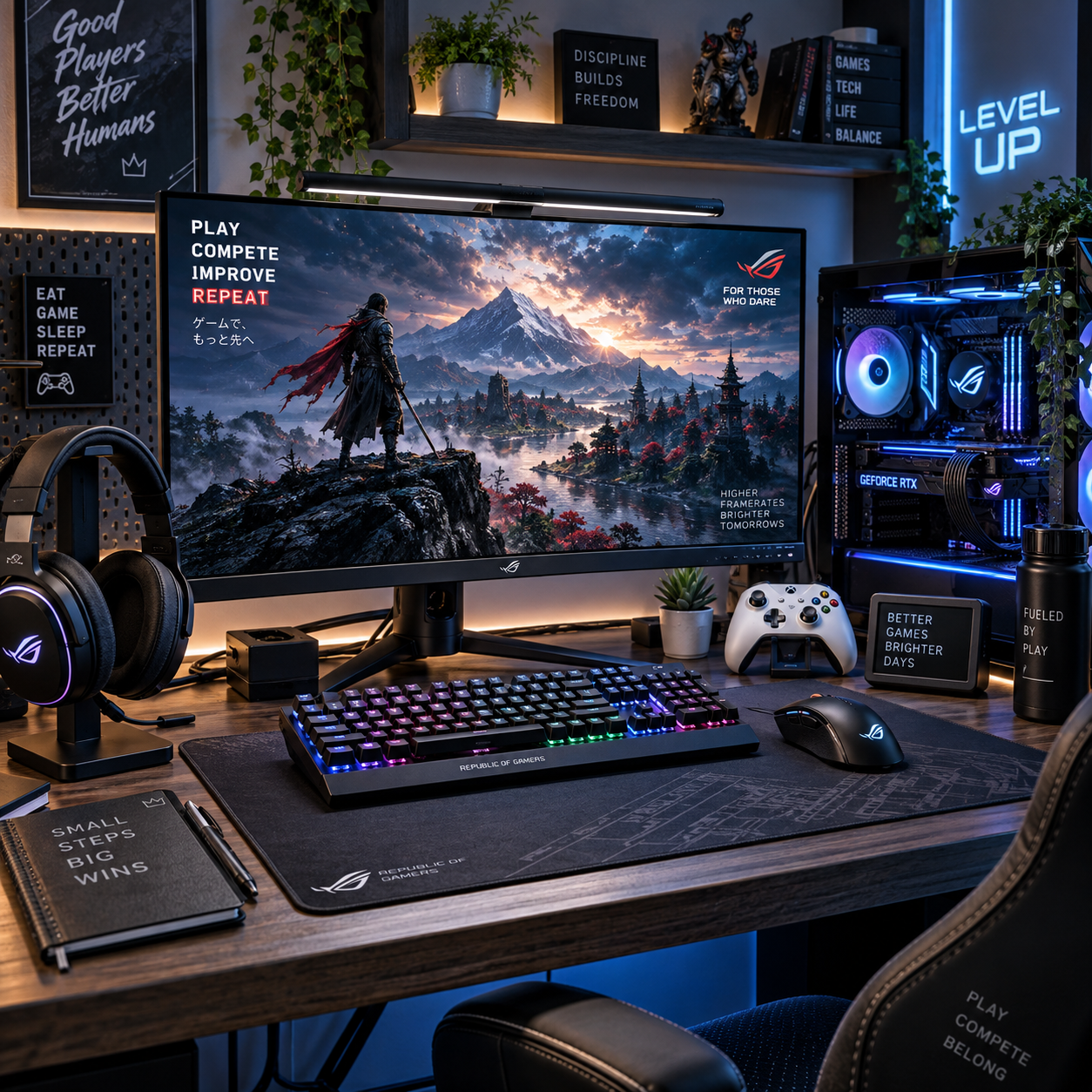
The right gaming accessories can make competitive play more comfortable, consistent, and easier to control. A gaming mouse, mechanical keyboard, headset, monitor, and controller each serve different needs, so the best choices depend on your games, platform, budget, and how the gear feels during long sessions.
Accessories cannot guarantee wins, and expensive equipment is rarely essential. Focus on responsive controls and a setup you can use comfortably, whether you play online multiplayer on PC or console, or enjoy casino-style games online.
What Competitive Players Should Look for in Gaming Accessories
Competitive gaming accessories should offer reliable responsiveness, comfortable ergonomics, and compatibility with your platform at a price that fits your budget. Start with the gear that addresses a real problem in the games you play.
Think of a purchase in four checks: control, comfort, compatibility, and value. Control means inputs and visuals feel predictable. Comfort includes a suitable grip, key spacing, headset fit, and screen position. Compatibility covers operating systems, console support, connection type, and available ports. Value is whether the feature solves a problem you actually have.
For a PC shooter, mouse shape and monitor refresh rate may matter more than a controller. A console player may get more use from a comfortable headset and a familiar gamepad. For online casino-style games, a standard mouse or controller may be perfectly adequate; accessories do not alter the odds or outcomes of games of chance.
1. Gaming Mouse: Precision and Customizable Controls
A gaming mouse provides precise cursor control and configurable buttons for PC games. Choose one that fits your hand and grip before chasing high DPI or extra features.
Mouse sensitivity and DPI (dots per inch) work together to determine how far the cursor moves in response to physical movement. A high DPI setting is not automatically more accurate; many players prefer a moderate setting and adjust in-game sensitivity until aiming feels consistent. If you switch between games, save profiles only when they help you maintain control rather than adding needless complexity.
Check the mouse’s weight, shape, button placement, and whether it is wired or wireless. A lightweight model may suit rapid movements, while a larger shape may feel more supportive in a relaxed palm grip. Wireless models remove cable drag, but consider battery life and connection reliability. Side buttons can be useful for game commands, though too many may be difficult to reach.
Before buying, test the grip if possible. A mouse that matches your hand is usually a better investment than a model with a long specification sheet.
2. Mechanical Keyboard: Consistent, Responsive Inputs
A mechanical keyboard offers distinct key feedback and a choice of switch types for different preferences. The right layout and comfortable switch feel matter more than flashy lighting.
Switches vary in travel, force, and sound. Linear switches move smoothly, tactile switches provide a noticeable bump, and clicky switches add audible feedback. None is universally fastest or best; noise may also be a concern in shared rooms or during voice chat. If possible, try a few switch types before committing.
Layout affects both desk space and access to keys. Full-size keyboards include a number pad, while tenkeyless and compact models leave more room for mouse movement. Check that the layout includes keys you regularly use, and confirm compatibility with your PC or console before buying. Programmable keys and profiles can help with game-specific commands, but they are optional.
Keep the keyboard at a height that lets your wrists rest comfortably, and avoid holding them bent upward for long periods. A wrist rest can be helpful for some players, but it should not force an awkward position.
3. Gaming Headset: Clear Audio and Communication
A gaming headset combines headphones and a microphone for in-game audio and team communication. Prioritize comfort, clear voice pickup, and platform compatibility over surround-sound claims.
In online multiplayer, clear audio can help you follow teammates and distinguish game sounds. A microphone that captures speech without excessive background noise is useful for coordinated play. If you mostly play solo, a headset microphone may matter less than comfortable ear cushions and balanced sound.
Look for a fit you can wear for the length of a typical session, breathable materials, and controls that are easy to reach. Closed-back earcups can reduce outside noise, but may feel warm. Wired headsets are simple to connect and do not need charging; wireless options offer more freedom but require battery management and may have connection or platform limitations.
Check the connection type before purchasing. A 3.5 mm headset may work across several devices, while USB or wireless models can have narrower compatibility. For casino-style games, a headset is optional unless you value private audio or use voice features elsewhere.
4. Gaming Monitor: Smooth, Clear Visuals
A gaming monitor affects how smoothly motion appears and how clearly you can see game details. Match its refresh rate, resolution, and connection to your computer or console.
Refresh rate, measured in hertz (Hz), is how many times per second the monitor can update its image. A higher rate can make motion appear smoother, but you need a system that can produce enough frames to take advantage of it. Response time describes how quickly pixels change; manufacturer test methods vary, so treat headline figures as one part of the comparison.
Start with your platform’s actual output. Check the computer’s graphics capability or the console’s supported resolution and refresh rate, then verify that the monitor has a suitable HDMI or DisplayPort connection. A high-resolution screen can show more detail, while a higher refresh rate may be more relevant for fast-moving games. Budget, desk space, and viewing distance also matter.
Set the display at a comfortable distance and height, reduce distracting glare, and use a resolution the system can run steadily. Buying a high-refresh-rate monitor that your setup cannot use fully may provide little practical benefit.
5. Controller: Familiar Controls for Console and PC
A controller suits games designed around thumbsticks, triggers, and directional buttons, and it can be used with many consoles and PCs. Choose one based on game compatibility, hand comfort, and connection preferences.
Controllers are often a natural fit for racing, platform, sports, and some action games. Mouse and keyboard may offer more direct aiming and customizable key assignments in many PC shooters, but preference and game design matter. There is no single input method that suits every genre or player.
Compare stick and trigger feel, button layout, weight, battery or charging needs, and wired or wireless connectivity. Check whether a PC game supports your controller and whether the platform recognizes it without extra configuration. Some controllers offer remappable buttons or adjustable triggers, but basic comfort and reliable connection should come first.
If you play across PC and console, confirm compatibility for each device rather than assuming one controller works everywhere. A familiar controller can make a setup more convenient, but it will not replace a mouse and keyboard in games built around those controls.
Build a Setup Around Your Games and Budget
Build a gaming setup by identifying your most-played games, checking device compatibility, and upgrading the accessory that causes the clearest limitation. A balanced, comfortable setup usually makes more sense than buying premium gear all at once.
Use this quick buying checklist:
- Name the problem. Are you struggling with mouse control, uncomfortable audio, limited screen smoothness, or a controller that does not suit the game?
- Check compatibility. Confirm platform support, connection type, ports, and any software requirements.
- Try for comfort. Consider hand size, grip, key layout, headset fit, and monitor position.
- Set a budget. Compare essential features first; treat lighting, extra buttons, and premium materials as optional.
- Change one thing at a time. Give yourself time to adjust before deciding whether another upgrade is necessary.
For a PC player who mainly plays competitive shooters, a comfortable mouse and suitable monitor may be the first priorities. A console player who joins team matches might benefit more from a reliable headset. Someone who plays a mix of racing games and online casino games may need only a controller and a basic, comfortable display. Your most useful upgrade depends on the games and the friction you experience, not on a fixed ranking of price tags.
Frequently Asked Questions
Which gaming accessory should I upgrade first?
Upgrade the accessory that solves your most noticeable problem. If your mouse is uncomfortable, start there; if you cannot hear teammates clearly, compare headsets. Avoid replacing working gear just because a newer model is available.
Do gaming accessories help with online casino games?
They can make navigation, audio, or viewing more comfortable, but they do not change the odds or outcomes of casino games of chance. A standard mouse, keyboard, screen, or controller is often enough.
Is a gaming headset necessary for competitive play?
No. A headset is useful for private listening and team communication, but it is not required for every game. A comfortable pair of headphones and a separate microphone may work just as well.
Should I choose a mouse and keyboard or a controller?
Choose the input method that fits your platform, game, and comfort. Mouse and keyboard suit many PC games, while controllers often feel natural in racing, sports, and platform games. Some players keep both available.